
Personal story#
I recently helped my son to do his C assignments at the university (yeah, I’m finally learning C 🧑🎓 in my fourties),
and all these assignments are built around reading input from the standard input. It’s handy in VSCode
to have a launch configuration with something like input.txt as the input for repeated debugging
cycles. But Eclipse does not have this feature, and it is a pain to set up a new launch configuration
for every new program. So I wrote this plugin.
What it does#
Small C and Java programs often read their input from the standard input. To run or debug such a program in Eclipse with the same input every time, you can:
- type or paste the input into the console on each run, or
- set Common > Input File in each launch configuration. A new program needs a new configuration before it can read the file.
This plugin adds a toolbar toggle. When it is on, every Run and Debug launch reads its standard input from one file that you choose. You do not edit launch configurations, so you can run or debug a new program with the same input at once.
It works with C/C++ (CDT, also when you debug with GDB), Java and other launch types that start a process. There used to be a long standing bug in Eclipse that did not send EOF after input file ended. And the CDT had a separate bug which is also now fixed. Luckily this is no longer the case, and I topped this up with the plugin to make supplying input as easy as possible.
Use#
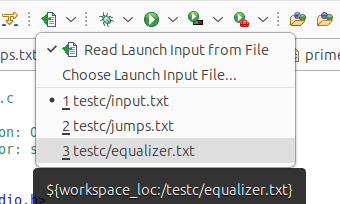
- Click the toolbar button (a page with an arrow) to turn the input file on or off. If no file is set, the first click asks for one.
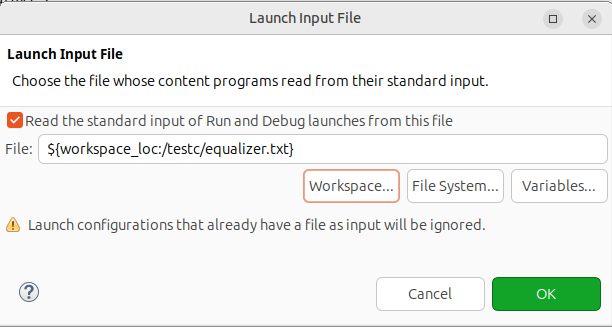
- Click the arrow next to the button, or select Run > Choose Launch Input File…,
to choose the file from the workspace or the file system. Variables such as
${workspace_loc:/project/input.txt}also work. - The menu of the button and the Run menu show the 9 last used files. Select one to use it and turn the input file on.
- When the input file is on, the console of each launch starts with
[Standard input read from file: ...]. After the content of the file, the program gets EOF.
Install#
In Eclipse, select Help > Install New Software…
In Work with, type this address and press
Enter:https://anydoby.com/eclipseSelect Launch Input File in the category anydoby Eclipse plugins.
Click Next, accept the license (EPL-2.0) and click Finish.
Restart Eclipse.
The plugin needs Java 21 or later.
Notes#
- Only launches that start while the toggle is on read the file. Programs that already run are not changed.
- Only Run and Debug launches read the file. External tools and builders do not. With GDB, only the debugged program reads the file, not GDB.
- A launch configuration that has its own input file (Common > Input File) continues to read that file. The plugin cannot stop this. I asked the Eclipse team to allow it in eclipse.platform#3027, feel free to vote for it 👍 if you want this too, then I’ll update the plugin.
- Under CDT, a C/C++ program reads from a terminal. If the file does not end with
a new line, the plugin sends
Ctrl+Dafter it, so that the program gets the last line. A terminal line can have a maximum of 4095 characters. - EOF after the file needs Eclipse 4.42 (2026-12) or later. For C/C++ debugging
it also needs a CDT that has
org.eclipse.cdt.dsf.gdb7.3.200 or later. In older versions, the program gets all of the file but no EOF.
Changelog#
- 1.0.0: first release