
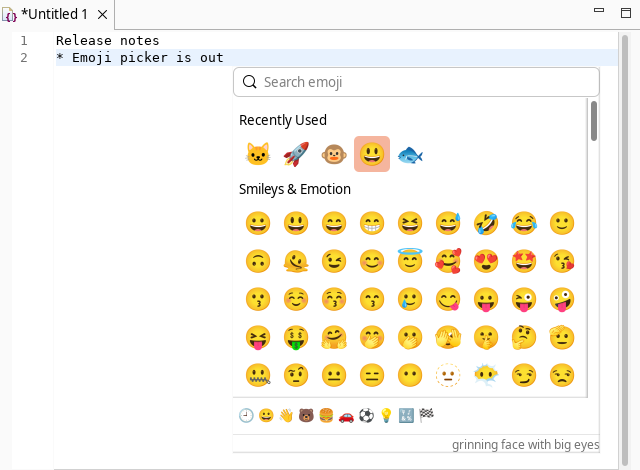
What it does#
In GTK apps such as Pluma, Ctrl+. opens a popup with emojis. The Eclipse editor
does not have this popup. There, you can only type Ctrl+Shift+U and the hex code
of the emoji, so you must know the code.
This plugin adds the popup to all Eclipse text editors: Java, XML, plain text and the others.
- Press
Alt+Shift+.(Option+Shift+.on macOS), or select Edit > Insert Emoji… - Type a name to search, for example
fishorcat face. - Use the arrow keys or the mouse to select an emoji.
- Press
Enteror click to insert it. PressEscto close the popup. - The buttons at the bottom go to a group: smileys, people, animals, food, travel, activities, objects, symbols and flags.
- Recently used emojis show first.
Ctrl+Zremoves an inserted emoji, as for typed text.
Install#
In Eclipse, select Help > Install New Software…
In Work with, type this address and press
Enter:https://anydoby.com/eclipseSelect Emoji Picker in the category anydoby Eclipse plugins.
Click Next, accept the license (EPL-2.0) and click Finish.
Restart Eclipse.
The plugin needs Eclipse 2024-03 (4.31) or later.
Notes#
- To change the key, go to Window > Preferences > General > Keys and search
for “Insert Emoji”. In the Emacs key scheme,
Alt+Shift+.already means “go to text end”. - Save files that contain emojis as UTF-8. Older workspaces on Windows can use Cp1252, which changes emojis into question marks.
- The popup shows each emoji in its default skin tone.
- The emoji list is Unicode 15.1. The plugin uses the emoji font of the system: Noto Color Emoji on Linux, Segoe UI Emoji on Windows and Apple Color Emoji on macOS. On Windows, Eclipse can show emojis in black and white.
Changelog#
- 1.0.1: new plugin ID
com.anydoby.emojipicker. If you installed 1.0.0, uninstall it first (Help > About Eclipse IDE > Installation Details). - 1.0.0: first release