
This site, its Eclipse update site and my Git server all run on one Raspberry Pi at home. Here is how it is set up, step by step, and what I did to keep it safe. Everything in it is free, apart from the domain name.
If you host your own services behind an Odido (yes, I’m one of those who got their personal data stolen 😭) router from Zyxel, one thing that might bite you: these routers have no NAT loopback. Your site then works for everybody on the internet, but not for you at home 🤨. Step 5 explains why, and how to fix it with a small DNS server.
The environment#
flowchart LR
  internet((Internet)) --- zyxel["5G router
Zyxel NR5307
192.168.1.1"]
  zyxel --- google["Google Wifi
192.168.1.227 / 192.168.86.1"]
  google --- pi["Raspberry Pi 4 'k1'
192.168.86.178"]
  google --- laptop[Laptops, phones]
- Internet: a 5G connection. The ISP router is a Zyxel NR5307. The public IP address can change at any time.
- Home network: a Google Wifi mesh behind the Zyxel. So there are two routers in my home, pretty typical, each with its own address translation (NAT). This “double NAT” scheme is explained further below.
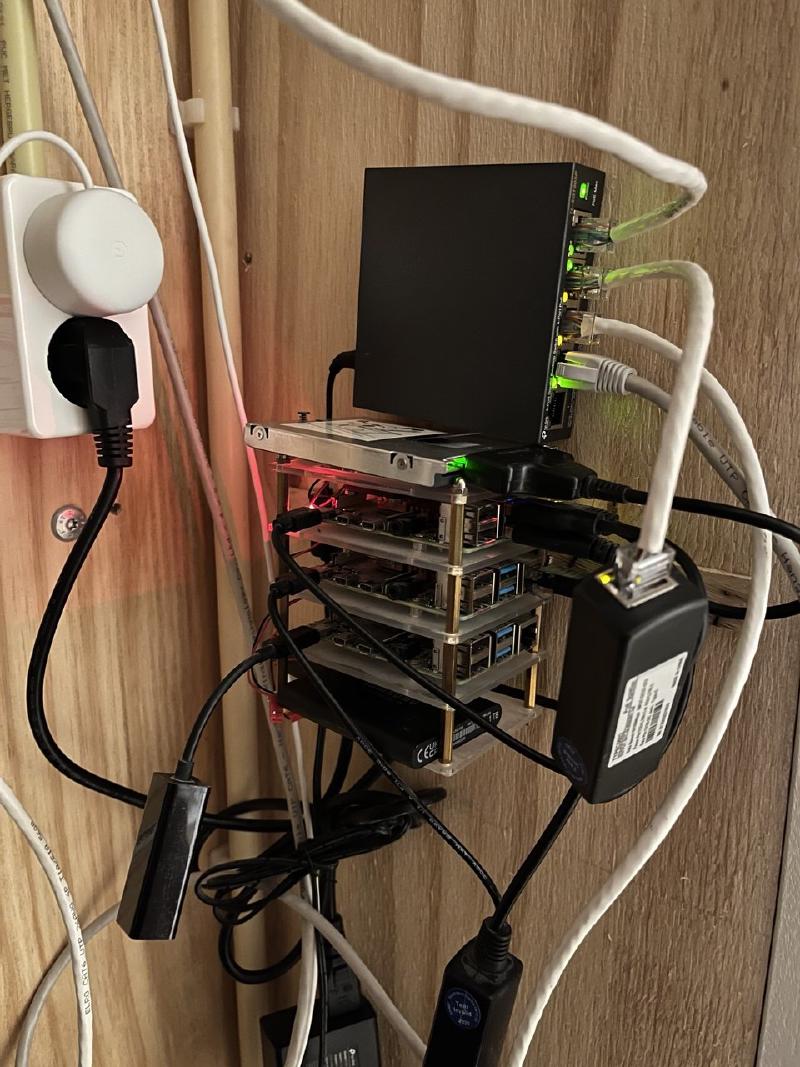
- Server: a Raspberry Pi 4 Model B with 4 GB of memory, running Ubuntu 26.04
and Docker. It’s amazing that you don’t even need a plug to run it: these tiny machines feed from a PoE cable
that provides Ethernet and power from a switch. A big relief in a crowded
meterkastof a Dutch home 🇳🇱.
Here’s how my server rack looks like:
The Pi runs these services:
| Service | How it runs | Who can reach it |
|---|---|---|
| Caddy web server (this site) | Docker container | internet, ports 80 and 443 |
| Gitea (Git server) with Gitea Actions runner (just like grown-up Github, but homy) | Docker containers | LAN only |
| Docker registry, Reposilite (Maven proxy) | Docker containers | LAN only |
| ddns-updater (keeps the DNS records current) | Docker container | LAN only |
| dnsmasq (DNS server for the home network) | Ubuntu package | LAN only |
Step 1: build and publish on every push#
The site is a Hugo site in a Gitea repository. A Gitea Actions
workflow runs on every push to main: it builds the pages with Hugo, copies them
into a Docker volume, and starts or reloads the Caddy container that serves them.
One detail cost me a failed deploy. The runner starts each job in its own container
and gives it the host’s Docker socket, but not the host’s folders. A job that
writes to /mnt/data/... writes into its own container, which is deleted after the
job. And when it then asks Docker to mount that host path, Docker makes an empty
folder there. The fix is a named volume, filled through a short-lived container:
tar -C public -cf - . | docker run --rm -i -v website-www:/www caddy:2-alpine \
  sh -c 'rm -rf /www/site && mkdir -p /www/site && tar -xf - -C /www/site'
Caddy mounts the same volume read-only. My Eclipse plugins publish their update
sites into the same volume, under /eclipse/<plugin>/.
Step 2: the domain and a changing IP address#
The domain is registered at Namecheap my old time favorite 🇺🇦 supporter. Because the 5G IP address changes, the DNS records must follow it. Namecheap offers Dynamic DNS for that:
- In Advanced DNS, make the
@andwwwrecords of the type A + Dynamic DNS Record. - Turn on Dynamic DNS and copy the Dynamic DNS password. It is a separate password, not the account password, just below the records.
- Run ddns-updater on the Pi. Every five minutes it compares the public IP with the DNS records and updates them when they differ. Before this wonder I used to have a cron job that would unconditionally ping Namecheap’s api every five minutes with my external IP.
  ddns:
    image: qmcgaw/ddns-updater:v2.10.0
    restart: unless-stopped
    environment:
      CONFIG: >-
        {"settings":[
        {"provider":"namecheap","domain":"anydoby.com","password":"${NAMECHEAP_DDNS_PASSWORD}"},
        {"provider":"namecheap","domain":"www.anydoby.com","password":"${NAMECHEAP_DDNS_PASSWORD}"}]}
      PERIOD: 5m
The password is a Gitea Actions secret. The deploy job passes it to Docker Compose, so it is never in the repository.
Two things I learned about DNS records on the way:
- A CNAME record must not exist next to other records with the same name. I had
an old
wwwCNAME next to thewwwA record, andwwwresolved unpredictably. - The Host field is relative to the domain.
@means the domain itself. When I typedanydoby.comthere, the record ended up asanydoby.com.anydoby.com, do not repeat my mistakes 🙂↕️.
Step 3: port forwarding through two routers#
With double NAT, each router must forward the ports:
- Zyxel: TCP 80 and TCP/UDP 443 to the Google Wifi router (192.168.1.227).
- Google Wifi (Google Home > Wi-Fi > Settings > Advanced networking > Port management): the same ports to the Pi (192.168.86.178).
Only these two ports are open to the internet. Gitea, the registry, the Maven proxy and SSH are not forwarded, so they stay on the home network.
To test from outside, I used check-host.net and my phone on 5G. A test from inside the home network with your WiFi does not tell the real story (see step 5).
Step 4: HTTPS for free#
I used to buy certificates. Now Let’s Encrypt gives them for free, and all browsers trust them. It also cost a world of pain before to configure them in Tomcat and to update when expired. Caddy gets and renews them by itself. The whole site configuration is this:
(site) {
	root * /www/site
	encode zstd gzip
	file_server
	header {
		Strict-Transport-Security "max-age=31536000"
		X-Content-Type-Options nosniff
		Referrer-Policy strict-origin-when-cross-origin
		-Server
	}
}

{$SITE_ADDRESS::80} {
	import site
}

http://kube1, http://192.168.86.178 {
	import site
}
SITE_ADDRESS is anydoby.com, www.anydoby.com. For a name in the site address,
Caddy asks Let’s Encrypt for a certificate, proves that it controls the domain over
port 80 or 443, installs the certificate, redirects HTTP to HTTPS, and renews the
certificate about a month before it expires. The second block keeps plain HTTP for
the LAN names of the Pi.
Step 5: why the site does not open at home (NAT loopback)#
After all this, the site worked from the internet, but not from home. That was a surprise. Usually it’s the other way around 😁: the browser waited and then hung up the phone. Problem is not in closed / blocked ports, but in the IP address rewriting between the router and … the roter on the way back. It is how port forwarding works.
How port forwarding works for a visitor from the internet#
Port forwarding is destination NAT. The router has one public IP address. When a packet for port 443 arrives at that address from the internet, the router changes the destination to the server’s private address and passes the packet on. On the way back, it changes the sender of the answer back to the public IP.
sequenceDiagram
  participant V2 as Visitor (internet)
  participant R2 as Router (public IP)
  participant S2 as Server 192.168.86.178
  V2->>R2: to public IP:443
  Note over R2: port forwarding: destination becomes 192.168.86.178
  R2->>S2: to 192.168.86.178:443
  S2->>R2: answer
  Note over R2: sender becomes the public IP again
  R2->>V2: answer from public IP:443
The visitor talks to the public IP all the time, and the answers come from the public IP. Everything matches, so it works.
A device at home asks for the same name#
At home, anydoby.com resolves to the same public IP. So the laptop sends its
request to the router, but from the inside:
sequenceDiagram
  participant L3 as Laptop 192.168.86.26
  participant R3 as Router (public IP)
  participant S3 as Server 192.168.86.178
  L3->>R3: to public IP:443 (from the LAN side)
  Note over R3: the forwarding rule is only for packets
that come from the internet side 😜
  R3--xL3: dropped (or the router's own login page)
  Note over L3: waits, then: timeout
The port forwarding rule is tied to the internet side of the router. A packet from the LAN to the router’s own public IP does not match it, so the router does not forward it. And the simple Zyxel NR5307 from Odido behaves like this, and it has no setting to change it. Game over? Not for the stubborn.
Why forwarding alone would not be enough#
Suppose the router did forward the packet. Then the server gets a request from the laptop’s own LAN address (since it’s ehm, on a local network for the router), and it answers the laptop directly, because both are on the same network:
sequenceDiagram
  participant L4 as Laptop 192.168.86.26
  participant R4 as Router (public IP)
  participant S4 as Server 192.168.86.178
  L4->>R4: to public IP:443
  R4->>S4: to 192.168.86.178:443, sender 192.168.86.26
  S4->>L4: answer from 192.168.86.178, directly
  Note over L4: I talked to the public IP, not to 192.168.86.178 🛑:
this answer is not mine, so it is discarded
The laptop expects answers from the public IP, so it discards an answer from 192.168.86.178. The connection never starts. This is the security we deserve.
What NAT loopback does#
A router with NAT loopback (also called hairpin NAT or NAT reflection) accepts the forwarding rule on its LAN side too, and it also changes the sender: the server sees the router as the sender, so it answers through the router, and the router sends the answer back from the public IP:
sequenceDiagram
  participant L5 as Laptop 192.168.86.26
  participant R5 as Smart Router 🤓 with NAT loopback
  participant S5 as Server 192.168.86.178
  L5->>R5: to public IP:443
  Note over R5: destination becomes the server,
sender becomes the router
  R5->>S5: to 192.168.86.178:443, sender the router
  S5->>R5: answer to the router
  R5->>L5: answer from public IP:443
Many routers can do this, but it is often off by default, and some ISP routers cannot do it at all. With two routers (remember the humble Google Home all the way around ☺️), both would have to do it in the right way.
The fix: split DNS#
If the router cannot loop the traffic back, make sure that devices at home never send it to the public IP:
sequenceDiagram
  participant L6 as Laptop 192.168.86.26
  participant D6 as dnsmasq on the server
  participant S6 as Server 192.168.86.178
  L6->>D6: where is anydoby.com?
  D6->>L6: 192.168.86.178 (inside the home)
  L6->>S6: to 192.168.86.178:443, directly
  S6->>L6: answer, with the same certificate
The certificate is for the name anydoby.com, not for an IP address, so HTTPS works
the same way at home since DNS marries the name to the local address. For your laptop testing it’s a one line in /etc/hosts:
192.168.86.178 anydoby.com www.anydoby.comBut what if you want to show it off to your kids on an iPad? Then you need a personal network DNS. Luckily we already have the Pi that can do it.
dnsmasq on the Pi#
I installed dnsmasq on the Pi as an Ubuntu package (no container: the whole network depends on it, and the package starts at boot before Docker, we want it to be reliable):
sudo apt install dnsmasqIn /etc/default/dnsmasq, this line stops the Debian service from making dnsmasq
the Pi’s own DNS server. dnsmasq does not listen on loopback, so the Pi would lose
DNS:
DNSMASQ_EXCEPT="lo"And /etc/dnsmasq.d/home.conf:
# Listen only on the LAN address; systemd-resolved keeps 127.0.0.53.
# this is your Pi's local network address
listen-address=192.168.86.178
bind-interfaces

# Upstream servers: Cloudflare and Quad9. Do not read /etc/resolv.conf:
# it points to the router, and the router asks this server (a loop).
no-resolv
server=1.1.1.1
server=9.9.9.9

# Cache: 10,000 answers; serve an expired answer at once (up to an hour)
# and refresh it in the background; remember "no such name" for a minute.
cache-size=10000
use-stale-cache=3600
neg-ttl=60

# Keep local names and private reverse lookups off the internet.
domain-needed
bogus-priv

# Split DNS: inside the home, anydoby.com is the Pi.
host-record=anydoby.com,www.anydoby.com,192.168.86.178
host-record answers only the address lookups for these two names. Other record
types, such as the TXT record for Google Search Console, still come from the public
DNS.
In the Google Home app, I reserved the Pi’s address (Wi-Fi > Devices > k1 (that’s my Pi) >
IP reservation) and set it as the custom primary DNS server (Wi-Fi > Settings >
Advanced networking > DNS), and a fallback with Google’s 8.8.8.8. The secondary is important:
the home internet keeps working when the Pi is down, but for those
moments anydoby.com falls back to the public IP and fails at home 😵💫. Hope this does not happen often.
dnsmasq reports its counters over DNS itself, so a check needs no login:
for q in hits misses insertions evictions servers; do
  echo "$q: $(dig +short chaos txt $q.bind @192.168.86.178)"
doneSecurity#
Why is this setup generally recognized as safe 💚:
- Small surface. Only ports 80 and 443 are forwarded, and they lead only to Caddy, which serves static files from a read-only volume.
- HTTPS everywhere, with HSTS,
nosniff, a strict referrer policy, and noServerheader. - Limited containers. Caddy and ddns-updater have small memory limits (64 MB each), so a fault cannot take the whole Pi 🤖.
- No secrets in Git. The Dynamic DNS password is a Gitea secret.
- Automatic security updates with
unattended-upgrades. - A firewall (ufw). Note that ports published by Docker go around ufw, so the router port forwarding is the real boundary for the containers.
Summary#
| Problem | Solution |
|---|---|
| Changing public IP | Namecheap Dynamic DNS + ddns-updater |
| Two routers (double NAT) | Forward 80/443 on both |
| Certificates | Caddy + Let’s Encrypt, free and automatic |
| Site not reachable from home (Odido Zyxel router: no NAT loopback) | dnsmasq on the Pi with split DNS |